
How to Order Ink/Toner for a Brother Laser Printer? (Tutorial Steps)
January 12, 2026
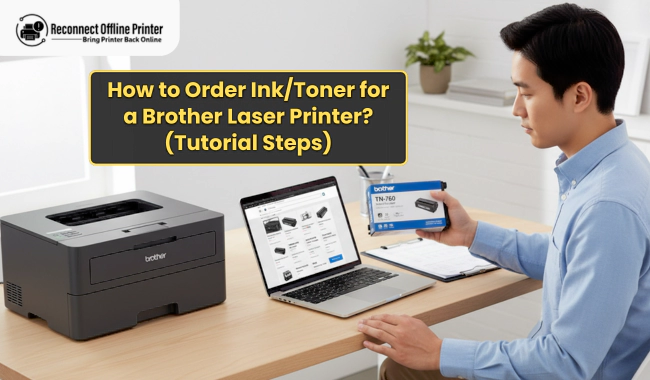

Brother offers reliable printers for home and office use and is a Japanese electronics company known for its wide lineup of multifunctional inkjet and laser printers. These printers have versatile connectivity options and are capable of printing, scanning, copying, and faxing. They produce sharp and high-resolution prints at reasonable prices and are easy to use, with user-friendly touchscreens and internal settings. Brother laser printers don’t use traditional liquid inks like inkjet printers; instead, they use toner cartridges containing dry ink powder. If you want to order a toner cartridge for a Brother laser printer, this guide explains each step clearly. By the end of this guide, you’ll be able to order a compatible toner cartridge for your printer model.
Steps to Order Toner Cartridges for a Brother Laser Printer
Brother offers toner cartridges on its official website. Before ordering one, you must know your 'Brother printer model' name and toner type. Also, note the cartridge number from your current toner cartridge.
Here are the detailed instructions on "how to order a toner cartridge for a Brother laser printer".
- Open an internet browser and go to brother-usa.com/supplies/ink-and-toner.
- Search for your printer model name or cartridge number in the search bar at the top.
- You can apply a filter in the left sidebar to show laser printers and genuine cartridges. This helps you find the right cartridge faster.
- Once you see the toner cartridge you’re looking for, click on the “Add to cart” button just below it.

- Go to the cart icon at the top of the page. You can increase the quantity of cartridges by clicking on the (+) sign or remove a product by clicking on “remove item.”
- Once you’re sure about your purchase, click on the “Proceed to Cart” button.

- You’ll be redirected to the payment page. You can add or remove the quantity if you want.
- The page will show the total amount along with the shipping charges. Click on the CHECKOUT button at the top.

- Now, you’ll be prompted to enter your personal details, including your full name, email address, phone number, address, city, state, and ZIP code.

- Select a shipping method such as standard ground, 2-day, or next day. The shipping charges may vary based on your selected method and distance.
- Finally, enter your billing information, such as your card number, expiration date, and CVV, or add your PayPal account details.
- Once you’re ready, make the payment and place the order.
How to Setup a Toner Cartridge in a Brother Printer?
Setting up a toner cartridge in a Brother laser printer is simple. You must know the steps involved, and then you’ll be all ready to install a new toner cartridge. Check the steps below.
- Turn on the printer using the power button and ensure it is connected to a wall outlet.
- Open the access door at the front, below the paper output tray, or on the scanner unit. This is where the cartridges are installed.
- If an old cartridge is installed, remove it by gently pulling it out.
- Unbox the new cartridge, and remove its seal.
- Don’t shake the cartridge vigorously; instead, move it back and forth a few times.
- Now, match the color sticker or key on the cartridge to the cartridge slot in the printer.
- Insert the cartridge in the direction indicated by the arrow on its label.
- Push the cartridge into the slot until it clicks into place, then secure it.
- Close the cartridge cover by pushing it down firmly.
- Don’t turn off the printer while it prepares the toner system.
- Finally, the printer screen may prompt you to load paper into the tray and proceed with printing.
Problems That May Occur During Cartridge Installation
Several issues may occur during 'toner cartridge installation' in a Brother printer. Below are the most common ones.
Issue 1: Low Toner Warning After Installation
The printer may display a “low toner” warning after installing a new cartridge if the cartridge isn’t installed properly or is non-genuine. In this situation, check that the cartridge is installed correctly and purchased from Brother’s official website or an authorized seller.
Issue 2: Toner Cartridge Fit Issues
During installation, the printer’s access door might not close properly if the cartridge’s design is bulky. It's also possible that you installed it incorrectly. You can resolve this problem by checking the compatibility of your printer with the cartridge and correctly installing it until it clicks in.
Issue 3: Printer Not Detecting Toner Cartridge
Your 'Brother laser printer' may not recognize the new toner cartridge and display errors such as “incompatible,” “failure,” or “missing.” It happens when the cartridge is not seated properly according to its color-coded slot. Also, if you haven’t removed the protective tape, the printer may not detect it. In this situation, check if your cartridge is compatible with the printer and is seated correctly.
You can try resolving these issues on your own. However, if you’re unable to do so, we can help you with 'toner cartridge installation' on a Brother laser printer. If you need assistance with cartridge-related issues, contact us at reconnectofflineprinter.com/contact-us, enter your name, email address, and phone number, and write your message. Our experts will get back to you soon.
Frequently Asked Questions
Question
How do I find the correct toner model for my Brother laser printer?
To find the correct toner cartridge for
your Brother printer, check the 'old toner cartridge' inside the printer. Open
the access door and check the label on the 'old cartridge to be replaced'. Search
for the same supply number on the Brother’s official website.
Question
Can I use the same toner cartridge for different Brother laser printer models?
No, you can’t use the same toner cartridge
for different Brother printers. Each cartridge has a different build specific
to the printer models. Hence, if you use the same cartridge, it won’t fit into
the slot, and the printer will show errors.
Question
How long does Brother toner usually last?
On average, Brother toner cartridges last
up to 6 months after opening and up to 2 years unopened. It also depends on how
frequently you print.
Question
Where can I check the toner cartridge number on my Brother printer?
You can check the cartridge number directly
on the cartridge label inside the printer. It's usually printed on the front or
side of the cartridge. It usually starts with “TN,” such as TN-223 or TN-450.
Question
Is it safe to use compatible or third-party toner for Brother laser printers?
Compatible or third-party toner may work,
but it is not always recommended. A 'third-party toner cartridge' is usually not
recommended due to quality concerns. Therefore, it is advisable to use a
genuine cartridge from an official source.

 +1-877-469-0297
 +44-800-054-8150
Enter your Comments Here: